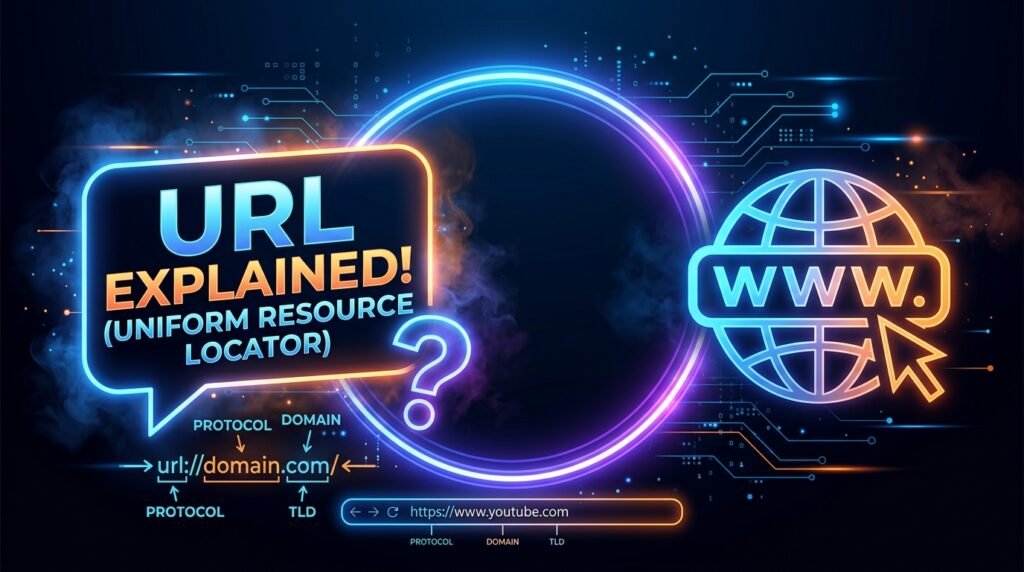

What Does URL Mean? If you’ve ever browsed the internet, you’ve likely encountered URLs every day without giving them much thought. A URL, or Uniform Resource Locator, is the web address that directs users to specific pages, files, or resources online. Understanding what a URL means is essential for anyone who uses the internet, whether for personal browsing, business, or digital marketing. In this guide, we’ll explore the meaning of URLs, how they work, their key components, and why they play a crucial role in navigating the web efficiently.
What Does URL Stand For?
URL stands for Uniform Resource Locator. That’s the full, official answer and it’s the complete web address used to find a specific page, file, or resource on the internet.
If you’ve ever typed something like https://www.google.com into a browser, you’ve used a URL. Every single thing on the web has one.
| Quick Answer: URL stands for Uniform Resource Locator. It is the unique address used to locate a specific resource such as a webpage, image, or file on the internet. |
Here’s something most people don’t know: the term wasn’t always “Uniform.” Before 1994, Tim Berners-Lee the man who invented the World Wide Web originally called it a Universal Resource Locator. The name changed as the standards evolved, but Berners-Lee’s core idea stayed the same: every resource on the internet needs a unique, readable address.
One small thing worth mentioning there’s no consensus on how to pronounce it. Some people say each letter: “U-R-L.” Others say it like a word: “earl.” Both are perfectly fine. I’ve heard both in the same meeting without anyone blinking.
The easiest way to think about a URL is like a home address. Just as “123 Main Street, Lahore” tells you exactly where a building is, a URL tells your browser exactly where to find a web page. Change one character, and you might end up somewhere completely different or nowhere at all.
Keep reading to see every piece of a URL broken down with real examples.
What Is a URL? Understanding the Basics
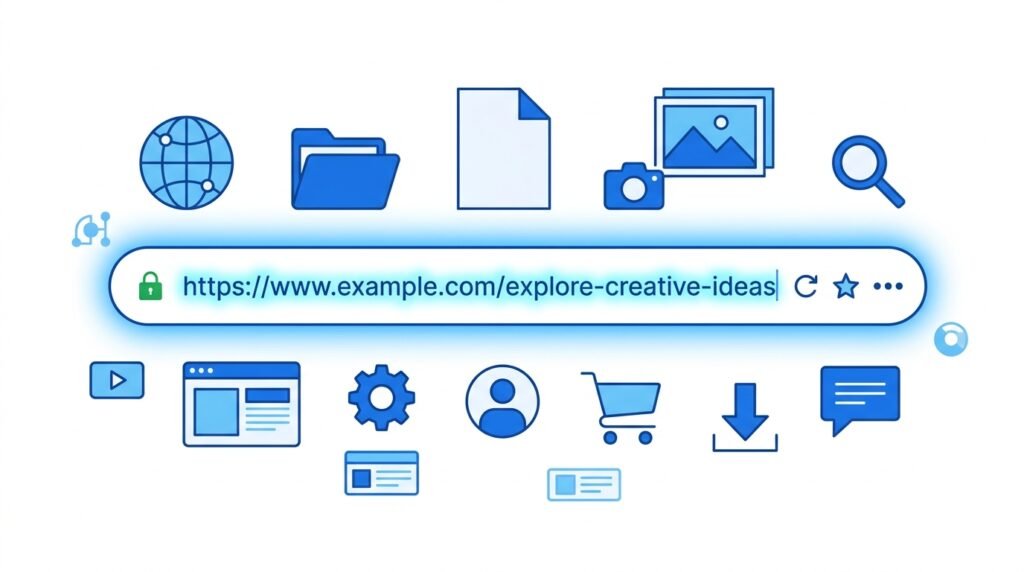
A URL is the full, exact address of anything on the internet. Not just websites but images, PDFs, videos, audio files, and even API endpoints. If it lives online and can be retrieved, it has a URL.
A lot of people confuse a URL with a link (also called a hyperlink). They’re related, but not the same thing. A link is the clickable text or button that takes you somewhere. The URL is the actual address underneath it. When a website says “Click here” the URL is what’s hiding behind those words.
URLs can also point to more than web pages. You’ve probably seen addresses starting with mailto: (which opens an email client) or tel: (which triggers a phone call on mobile). Those are URLs too just ones pointing to different types of resources.
| Important: A URL is NOT the same as a domain name. The domain is just one part of the URL we’ll break this down in the next section. |
Breaking Down the Parts of a URL (With Real Examples)
Most URLs look like a jumble of slashes, dots, and question marks. But once you know what each piece does, it starts to make perfect sense. Let’s use this URL as our example throughout:
https://garminlive.com/what-does-rn-mean-in-a-text/
There are seven distinct parts here. Let’s go through each one.
1. The Protocol (Scheme) https://
This is the first thing in any URL, and it tells the browser how to retrieve the resource. Think of it as the communication method.
HTTP is the older, unencrypted version. HTTPS is the secure, encrypted version the padlock icon you see in your browser address bar. Always look for HTTPS, especially on any site that asks for a password or payment details.
Other schemes exist too: ftp:// (for file transfers), mailto: (for email), tel: (for phone calls), and file:// (for local files on your own computer).
2. The Subdomain www.
The subdomain comes before the main domain name. “www” stands for World Wide Web and it’s technically just a convention from the early days of the internet.
Many modern sites work fine without it https://garminlive.com/ and https://garminlive.com/ usually go to the same place. But subdomains can also point to entirely different sections: maps.google.com, blog.example.com, or shop.yoursite.com.
3. The Domain Name garminlive.com
This is the human-readable name of the website. It’s made up of two parts: the second-level domain (“example”) and the top-level domain (“.com”).
Top-level domains TLDs come in many flavors: .com, .org, .net, .gov, .edu, .io, .co.uk, and hundreds of others. The TLD gives a rough sense of what kind of site it is, though these days .com is used for almost everything.
4. The Port Number :443
This one’s almost always hidden in everyday URLs. A port is like a numbered gate on a server it specifies which “channel” the browser should use to connect.
Port 80 is the default for HTTP. Port 443 is the default for HTTPS. You only see the port written out explicitly when a non-standard port is being used like :8080 or :3000 in local development environments.
5. The Path /blog/article
The path points to a specific page or file within the website. Think of it exactly like folders on your computer: /folder/subfolder/filename.
For example, /shop/shoes/trainers navigates through the “shop” section, into “shoes,” down to “trainers.” Each slash is basically opening another folder.
6. The Query String (Parameters) ?topic=url&sort=new
The query string starts with a ? and passes extra data to the server. Multiple parameters are separated by &.
You see these constantly in search results (?q=your+search+term), e-commerce filter pages (?color=red&size=10), and tracking links. They’re dynamic the same page can display different content depending on the parameters passed.
7. The Fragment (Anchor)
The fragment starts with # and jumps to a specific section within the page. Here’s the interesting part: it’s never sent to the server. The browser handles it entirely on its own.
If you’ve ever clicked a “Jump to section” link on a long Wikipedia article or a documentation page, you’ve used a fragment. It’s also what powers those “Back to top” buttons.
| Part | Example | Purpose |
| Protocol | https:// | How the browser communicates |
| Subdomain | www. | Section or service prefix |
| Domain Name | example.com | Human-readable site identity |
| Port | :443 | Server communication channel |
| Path | /blog/article | Specific page or file location |
| Query String | ?topic=url&sort=new | Extra data passed to server |
| Fragment | #section2 | Jumps to in-page section |
Now that you know the parts, let’s look at how URLs affect your online safety.
Read More: https://garminlive.com/dtm-meaning-in-text-definition-examples-and-context/
HTTP vs. HTTPS Why the “S” in Your URL Matters
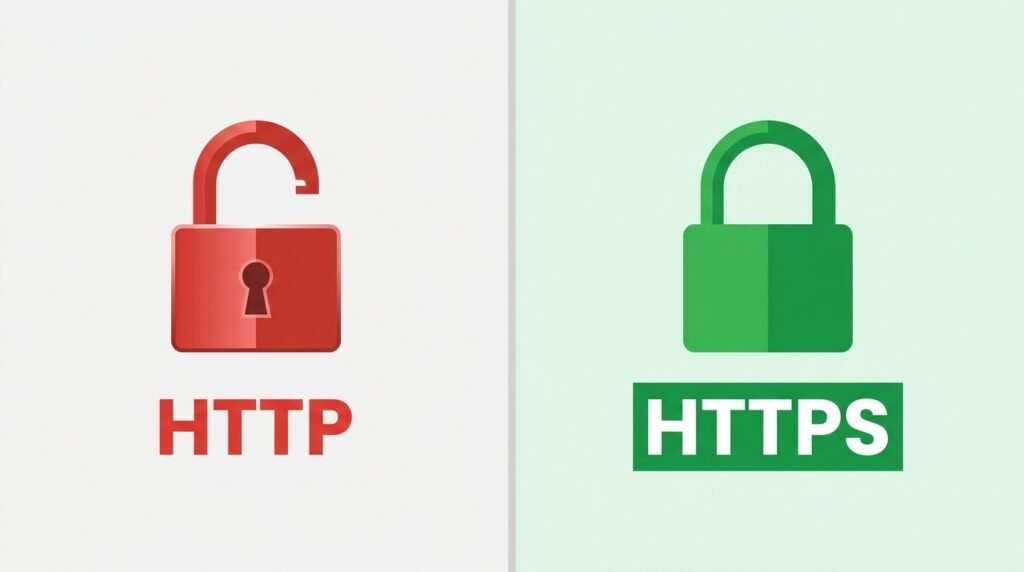
The “S” stands for Secure. That’s really all there is to it but the implications are significant.
HTTPS uses a protocol called TLS (Transport Layer Security), sometimes still referred to as SSL. It encrypts the data traveling between your browser and the website’s server. That means if someone was monitoring your internet connection, they’d see scrambled nonsense instead of your login details or credit card number.
HTTP has none of that protection. Data goes back and forth in plain text. Intercepting it is not as difficult as people assume, especially on public Wi-Fi.
From a practical standpoint: if you see the padlock icon in your browser’s address bar, the connection is encrypted. If you see “Not Secure” especially in Google Chrome the site is still running on HTTP. Google started actively labeling HTTP sites this way in 2018, which pushed a lot of website owners to upgrade.
From an SEO angle, HTTPS has been a confirmed Google ranking signal since 2014. It’s a small factor, but when everything else is equal, the secure site wins.
| Tip for website owners: Always use HTTPS. Free SSL certificates are available through Let’s Encrypt, and most web hosts install them automatically these days. There’s no excuse not to. |
Types of URLs Not All Web Addresses Are the Same
Most people assume every URL is the same kind of thing just a different address. But there are actually several distinct types, and knowing them makes the web a lot easier to navigate.
Absolute URLs — Contain the full address, including the protocol and domain. These are used in external links, emails, and anywhere the browser needs the complete picture: https://example.com/blog/post
Relative URLs — Partial addresses used within the same website. Instead of the full address, they just reference the path: /about or ../images/logo.png. The browser fills in the rest based on context.
Static URLs — Fixed, unchanging addresses that describe the content: /shoes/red-trainers. Search engines and users alike tend to trust these more.
Dynamic URLs — Generated on the fly, often containing parameters: ?id=4523&cat=12. These are common in e-commerce and content management systems, though they’re generally less SEO-friendly and harder for users to remember.
Canonical URLs — The “official” version of a page’s address. Used to tell search engines which version to index when duplicate content exists across multiple URLs.
Vanity / Custom URLs — Branded, memorable short links used in marketing campaigns: brand.link/sale or go.yourcompany.com/offer. From what I’ve seen, these consistently outperform generic short links for click-through rates because people actually trust them.
Short URLs — Created by tools like Bitly or TinyURL, these redirect to longer destinations. Useful on social media where character limits matter, but always check where a short URL actually goes before clicking more on that in the safety section.
Deep Links — URLs that open a specific location inside a mobile app rather than a website. If you’ve ever tapped a link in an email and it opened directly inside an app at a specific screen, that was a deep link.
Data URLs — These embed small files (usually images) directly in the URL string. They start with data: and are used mainly by developers to include inline resources without a separate HTTP request.
| SEO Note: Static, descriptive URLs almost always outperform dynamic ones both for search rankings and for the simple reason that humans can read and remember them. |
How URLs Work What Actually Happens When You Click a Link?
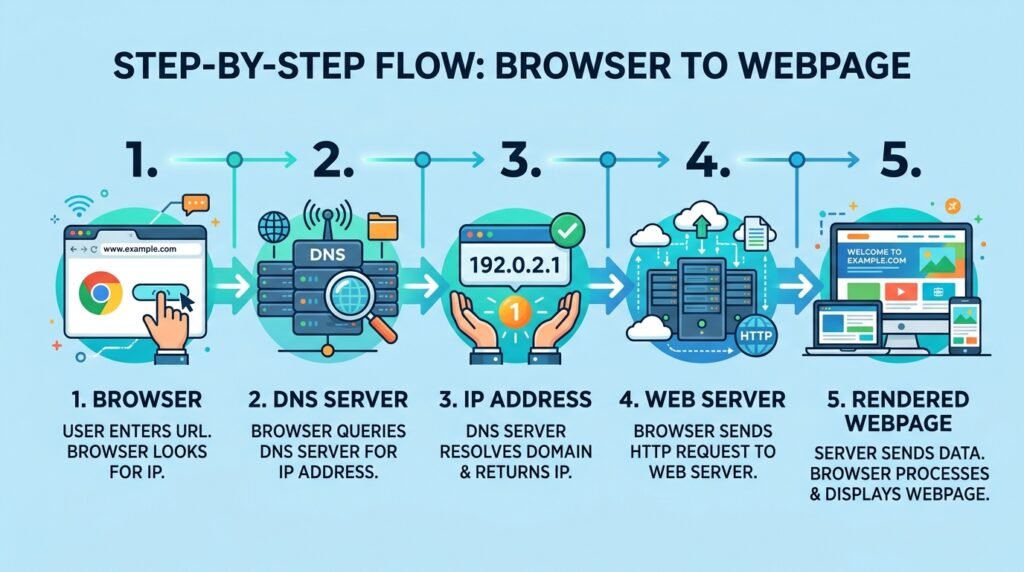
This is the part competitors skip entirely, and honestly it’s one of the most interesting things to understand. The whole process that takes you from a URL to a rendered webpage happens in milliseconds usually under 200 of them but there are several distinct steps happening in sequence.
- You type https://example.com into the browser (or click a link).
- The browser checks its local cache to see if it has visited this address recently and stored a copy.
- If not cached, a DNS lookup happens. DNS the Domain Name System works like a phone book for the internet. It converts the human-readable domain name (example.com) into a machine-readable IP address (like 93.184.216.34).
- Your browser sends an HTTP or HTTPS request to that IP address.
- The web server at that address receives the request, processes it, and sends back a response typically an HTML file, along with references to any CSS, JavaScript, and images the page needs.
- Your browser takes all of that and renders it as a visual webpage.
The DNS step is the one people find most surprising. You never interact with IP addresses directly when browsing DNS is handling that translation silently every single time.
URLs and SEO: Why Your URL Structure Can Make or Break Your Rankings
This is the section missing from almost every other article on this topic. URL structure actually matters for SEO not dramatically, but enough to be worth getting right from the start.
Google reads your URLs. Keywords in a URL contribute (modestly) to relevance signals. More importantly, a clean, descriptive URL improves click-through rates in search results because users can see at a glance what a page is about before they click.
Here’s a quick comparison of a good URL versus a bad one for the same page:
| Type | Example URL | Why It Matters |
| Good URL | /what-does-url-mean | Readable, keyword-rich, shareable |
| Bad URL | /post?id=4523&cat=12 | Tells users and Google nothing |
Here are the URL SEO best practices worth following:
- Use hyphens (-) to separate words — not underscores (_). Google treats hyphens as spaces between words.
- Keep URLs short and descriptive, ideally under 75 characters.
- Include your target keyword naturally — don’t stuff it, just use it once where it fits.
- Lowercase only. Mixed-case URLs can cause duplicate content issues on some servers.
- Avoid stop words (and, the, of) where they don’t add clarity.
- Never use session IDs, timestamps, or auto-generated numbers in public-facing URLs.
- Avoid parameters for main content pages where possible.
| Critical Warning: Changing URLs on an established page without setting up a 301 redirect can destroy your traffic overnight. The old URL had backlinks, search rankings, and history a 301 tells Google to transfer all of that to the new address. Skip it and you’re starting from zero. |
How to Spot a Dangerous or Fake URL (URL Safety Guide)
This is something everyone online should know and it’s barely covered anywhere. Phishing scams, fake banking sites, malware downloads they all rely on URLs that look legitimate enough to fool someone who isn’t paying close attention.
Here’s a red flag checklist to run through before clicking any unfamiliar link:
- HTTP instead of HTTPS — especially on a login or payment page. Any site asking for sensitive information should be running on HTTPS.
- Extra words stuffed into the domain name — a URL like paypal-secure-login.net is not PayPal. PayPal owns paypal.com. The domain is what matters, not what comes before or after it.
- Misspelled domain names (typosquatting) — gooogle.com, arnazon.com, paypai.com. One character changed is sometimes all it takes. Many legitimate-looking scam sites rely on people misreading quickly.
- Unnecessarily long, messy URLs packed with random numbers and symbols.
- Shortened URLs that hide the actual destination — a bit.ly or tinyurl link could point anywhere. Use a URL expander (just search for one) to reveal the full address before clicking.
- The domain doesn’t match the brand name shown in the email or message. If an email says it’s from your bank but the URL goes somewhere completely different, close it immediately.
On desktop, you can hover over any link before clicking the real URL appears in the bottom bar of your browser. Get into the habit of doing this, especially with emails.
If you need to check a URL’s safety, these tools are reliable: Google Safe Browsing, VirusTotal, and URLVoid. All free, all quick.
When in doubt about a link, don’t click it type the address directly into your browser instead.
Read More: https://garminlive.com/what-does-nfs-mean-in-text-full-form-examples-explained/
URL Best Practices Tips for Website Owners and Bloggers
If you’re building a website, writing blog posts, or managing any kind of online presence, your URL structure is one of those foundational decisions you want to get right early. Changing it later is painful.
Here’s what good URL structure looks like in practice:
- Make every URL self-descriptive. A user should be able to read the URL in a search result and know exactly what the page is about before clicking.
- Use hyphens, not spaces or underscores. Spaces aren’t valid in URLs and get encoded as %20, which looks messy. Underscores can cause word-joining issues for search engines.
- Keep it short. The shorter the URL, the easier it is to share, type from memory, and read in a search result snippet.
- Match the URL to the page title where possible. If your H1 is “What Does URL Mean” your URL should be something like /what-does-url-mean. Consistency helps.
- Use a consistent structure site-wide something like /category/post-title. Pick a pattern and stick to it.
- For WordPress users: Go to Settings > Permalinks and change the structure to “Post name.” The default WordPress URL structure (?p=123) is terrible for both SEO and readability.
One term worth knowing here is a “slug” it’s the last segment of a URL after the final slash. In /blog/what-does-url-mean, the slug is what-does-url-mean. Most CMSs let you customize the slug independently from the page title, which is useful when your H1 is long.
URL vs. URI vs. URN What’s the Difference?
These three terms get mixed up constantly, even by developers who should know better. The short explanation:
URI (Uniform Resource Identifier) The broadest term. Any string that identifies a resource on the internet. It’s the umbrella category.
URL (Uniform Resource Locator) A type of URI that not only identifies a resource but also tells you where to find it and how to access it. Most web addresses are URLs.
URN (Uniform Resource Name) A type of URI that gives a resource a permanent name regardless of where it lives. ISBN numbers for books are the classic example: urn:isbn:978-0-06-112008-4 identifies a specific book no matter which library has it.
| Simple rule: Every URL is a URI, but not every URI is a URL. Think of URI as the parent category. |
A helpful analogy: a URN is like a person’s full legal name it identifies them uniquely. A URL is like their home address it tells you where to find them. Both identify the same person, but only one tells you where to go.
In everyday conversation, URI and URL are used interchangeably by most people, including a lot of developers. If someone says URI when they probably mean URL, they’re not wrong they’re just using the more technically precise term.
Frequently Asked Questions About URLs
What does URL stand for?
URL stands for Uniform Resource Locator. It’s the complete web address used to find a specific page or file on the internet.
Is a URL the same as a website address?
In everyday use, yes people use URL and web address to mean the same thing. Technically, a URL can point to any online resource, not just websites. That includes images, PDFs, videos, and other files.
Why do some URLs start with http and others with https?
The S in HTTPS stands for Secure. HTTPS uses encryption to protect the data traveling between your browser and the website. HTTP has no such protection. Always prefer HTTPS when entering any personal or payment information.
What is the part of the URL after the domain called?
The section after the domain name is called the path. It points to a specific page or file within the site. In https://garminlive.com/blog/post, the path is /blog/post.
Can a URL contain spaces?
No. Spaces aren’t valid in URLs. They’re replaced with %20 (URL encoding) or a + sign in query strings. This is why you sometimes see %20 appearing in web addresses it just means there was a space there.
What is a URL shortener?
A URL shortener converts a long URL into a much shorter one that redirects to the same destination. Tools like Bitly, TinyURL, and Short.io are common examples. They’re useful for social media and marketing, but be cautious clicking shortened URLs from unknown sources you can’t see where they actually go without expanding them first.
Are URL and link the same thing?
Not exactly. A link (or hyperlink) is the clickable element the text or image that takes you somewhere. The URL is the actual address it points to. A link might display the words “read more” while the URL behind it is https://example.com/article.
Does the URL structure affect Google rankings?
Yes, though modestly. Google reads keywords in a URL as a relevance signal. More significantly, clean and descriptive URLs improve click-through rates in search results which is a user experience signal Google values. A URL that tells you what a page is about before you click it will almost always outperform one that doesn’t.
What does www mean in a URL?
WWW stands for World Wide Web. It’s a subdomain prefix that became standard in the early days of the internet. Today, many modern websites work fine without it https://garminlive.com/ and https://garminlive.com/.com typically go to the same place.
What is a “dead URL” or “broken link”?
A dead URL also called a broken link is a web address that no longer works. The page may have been deleted, moved, or the domain may have expired. When you visit a dead URL, you typically see a 404 Not Found error page. For website owners, broken links hurt both user experience and SEO.
Conclusion: Understanding URLs Makes You a Smarter Internet User
Here’s the short version of everything we covered:
- URL stands for Uniform Resource Locator the complete address of anything on the internet.
- Every URL has up to seven parts: protocol, subdomain, domain, port, path, query string, and fragment.
- Always look for HTTPS and the padlock icon for safe browsing.
- SEO-friendly URLs are short, descriptive, and use hyphens not parameters.
- Knowing how to read a suspicious URL is one of the most practical internet safety skills there is.
The internet can feel overwhelming at first. But once you understand URLs, you’re already more fluent in how the web works than most people walking around with a smartphone in their pocket.
Found this helpful? Share it with someone who’s just getting started online, or bookmark it for your next web project.
About The Author