Admin
Admin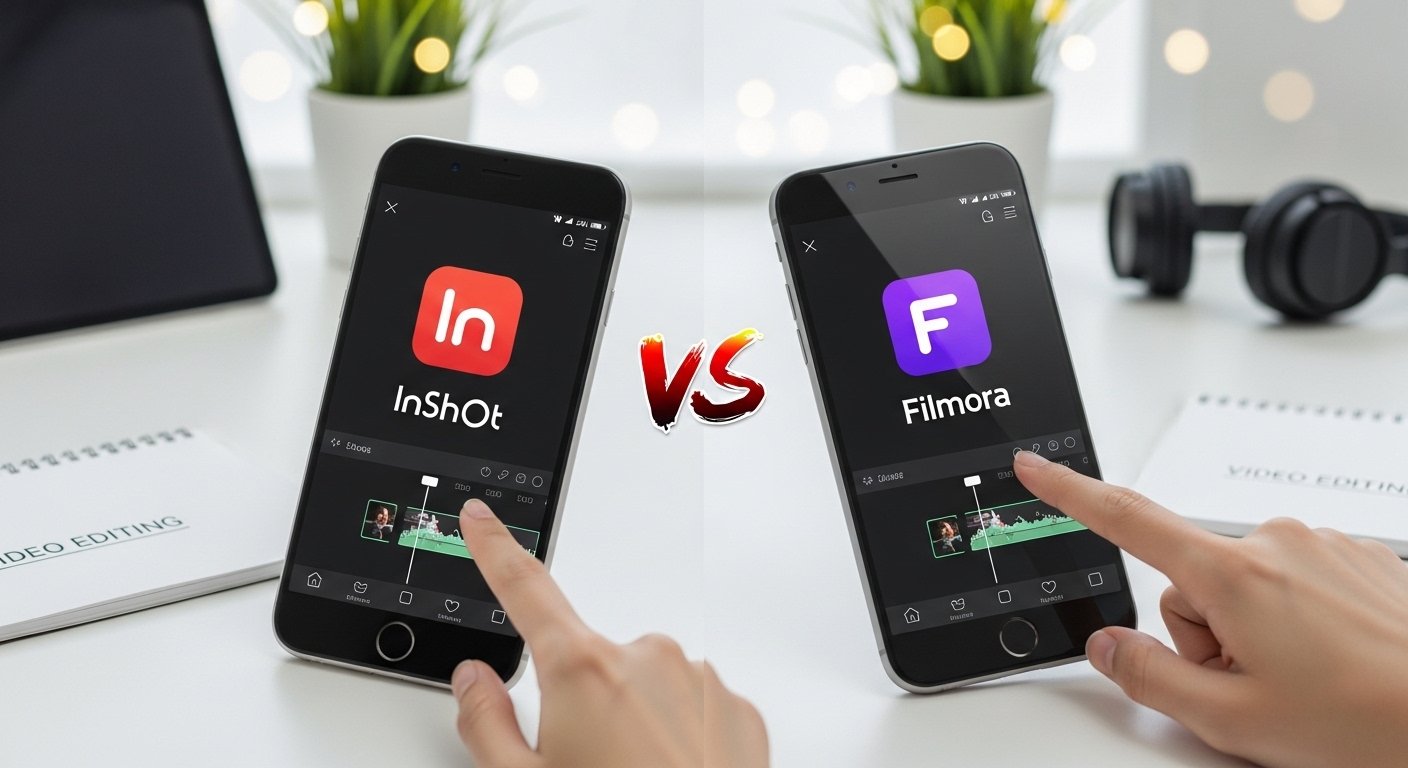
If you’ve been searching for a solid video editor lately, you’ve probably come across InShot vs Filmora. I’ve used both over the past couple of years sometimes for quick Instagram reels, other times for longer YouTube contentand honestly, they serve very different purposes.
This InShot vs Filmora comparison is really about mobile vs desktop video editor workflows. One is built for speed and simplicity, the other for flexibility and depth. Whether you’re a beginner experimenting with editing apps for social media or someone trying to level up your content creator tools, this breakdown should help you pick the right one.
Overview of InShot
Key Features of InShot
InShot is one of those apps that feels instantly familiar. You open it, and within minutes you’re trimming clips, adding music, and exporting.
Some standout InShot app features I’ve used regularly:
- Simple trimming and splitting tools
- Built-in filters and effects that work well for social media
- Easy transitions (nothing too fancy, but enough)
- Text overlays with decent font options
- Music editing and voiceover support
- Speed control for slow-mo or fast cuts
- Clean, beginner-friendly UI
What I like most is how optimized it is for vertical videos. If you’re editing for TikTok or Instagram Reels, it just makes sense.
Pros and Cons of InShot
Pros:
- Very easy to use, even for complete beginners
- Fast editing workflow (great for quick video editor apps)
- Optimized for mobile content
- Minimal learning curve
Cons:
- Limited advanced editing tools
- Watermark in the free version
- Not ideal for long or complex projects
- Effects and transitions feel basic after a while
From what I’ve seen, many people stick with InShot longer than they should, even when their content outgrows it.
Overview of Filmora
Key Features of Filmora
Filmora sits in that middle ground between beginner-friendly and semi-professional editing software. It’s available on both desktop and mobile, but the desktop version is where it really shines.
Key Filmora features that stand out:
- Timeline-based editing (more control than mobile apps)
- Large effects and transitions library
- AI tools like auto cut, background removal, and motion tracking
- Advanced color grading options
- Keyframing and animation tools
- Audio editing with noise reduction
- Support for 4K editing
When I first switched to Filmora, the timeline editing felt like a big step up from mobile apps. It takes a bit of getting used to, but the control is worth it.
Pros and Cons of Filmora
Pros:
- More advanced editing capabilities
- Huge effects and transitions library
- Works well for YouTube and long-form content
- Still beginner-friendly compared to pro tools
Cons:
- Slight learning curve
- Requires a decent device for smooth performance
- Watermark in free version
- Paid plans can feel expensive over time
If you’re serious about editing, Filmora feels like a natural upgrade from simpler tools.
Read more: https://garminlive.com/how-to-use-a-vpn-step-by-step-beginners-guide-for-2026/
InShot vs Filmora: Detailed Comparison
Ease of Use
InShot wins this round easily.
It’s one of the simplest editing apps for beginners I’ve used. You don’t really need a tutorial just tap, drag, export.
Filmora, on the other hand, isn’t difficult, but it does take time. The timeline, layers, and effects panels can feel overwhelming at first. After a few projects though, it starts to click.
If you want something quick and effortless → InShot
If you’re okay learning a bit → Filmora
Features Comparison
This is where Filmora clearly pulls ahead.
InShot covers the basics:
- Trimming
- Filters
- Music
- Simple transitions
Filmora goes deeper:
- Motion tracking
- Keyframing
- Advanced transitions
- Color grading
- Multi-layer editing
Many people overlook how limiting basic tools can become once your content improves. That’s exactly where Filmora becomes useful.
Performance & Compatibility
InShot runs smoothly on most smartphones, even mid-range ones. That’s a big plus if you don’t have high-end hardware.
Filmora depends more on your device:
- Desktop version needs decent RAM and GPU
- Mobile version is lighter but less powerful
For low-end devices, InShot is more reliable. Filmora can lag if your system isn’t up to the task.
Pricing Comparison
Both apps follow a freemium model.
- InShot: Free with watermark, affordable one-time purchase or subscription
- Filmora: Free with watermark, subscription or lifetime plan (higher cost)
From my experience, InShot feels more budget-friendly. Filmora is an investment, especially if you go for premium effects packs.
Export Quality & Formats
InShot supports HD exports and works fine for social media.
Filmora supports:
- Full HD and 4K exports
- More format options
- Better compression control
If you care about high-quality YouTube videos or cinematic edits, Filmora is the better choice.
Best Use Cases – Which One Should You Choose?
When to Use InShot
Use InShot if you:
- Create TikTok or Instagram Reels
- Need quick edits on your phone
- Prefer simple video editing apps
- Don’t want to deal with complex tools
Honestly, I still use InShot for quick edits when I don’t want to open my laptop.
When to Use Filmora
Use Filmora if you:
- Edit YouTube videos
- Work on longer or more detailed projects
- Want advanced editing tools
- Care about production quality
It’s especially good if you’re transitioning from beginner to intermediate level.
InShot vs Filmora: Pros Summary Table
| Feature | InShot | Filmora |
|---|---|---|
| Ease of Use | Very easy | Moderate |
| Features | Basic | Advanced |
| Platform | Mobile | Desktop + Mobile |
| Performance | Lightweight | Device-dependent |
| Pricing | Affordable | Higher cost |
| Export Quality | Good (HD) | Excellent (up to 4K) |
Tips to Choose the Right Video Editing App
Choosing between these tools isn’t complicated if you think about a few things:
- Your device: Phone → InShot, Computer → Filmora
- Your skill level: Beginner → InShot, Growing creator → Filmora
- Your content type: Short-form → InShot, Long-form → Filmora
- Your budget: Tight → InShot, Flexible → Filmora
A lot of people pick tools based on hype instead of actual needs. That usually backfires.
Read more: https://garminlive.com/apple-parental-controls-10-powerful-tips-every-parent-must-know/
Common Mistakes to Avoid
I’ve made a few of these myself early on:
- Choosing complex software too early
- Paying for features you don’t use
- Ignoring export quality settings
- Sticking with limited apps for too long
One big mistake? Trying to edit YouTube videos on basic mobile apps. It works… but not well.
FAQs
Which is better, InShot or Filmora?
It depends on your needs. InShot is better for quick, simple edits. Filmora is better for advanced editing and longer videos.
Is Filmora good for beginners?
Yes, but expect a small learning curve. It’s still one of the easiest desktop editing tools available.
Does InShot have a watermark?
Yes, the free version includes a watermark. You can remove it with the paid version.
Can I use Filmora for YouTube videos?
Absolutely. Filmora is actually a great choice for YouTube editing, especially for beginners and intermediate creators.
Is InShot free to use?
Yes, but with limitations like watermarks and locked features.
Which app is better for mobile editing?
InShot is clearly better for mobile editing. It’s faster, simpler, and optimized for phones.
Final Verdict:
If I had to sum up this InShot vs Filmora comparison in one sentence: InShot is for speed, Filmora is for control.
Go with InShot if you want something quick, easy, and mobile-friendly. It’s perfect for casual creators and social media content.
Go with Filmora if you’re serious about improving your videos. It gives you room to grow without jumping into overly complex software.
Personally, I still use both but for completely different reasons. And that’s probably the most honest answer you’ll get.