Admin
Admin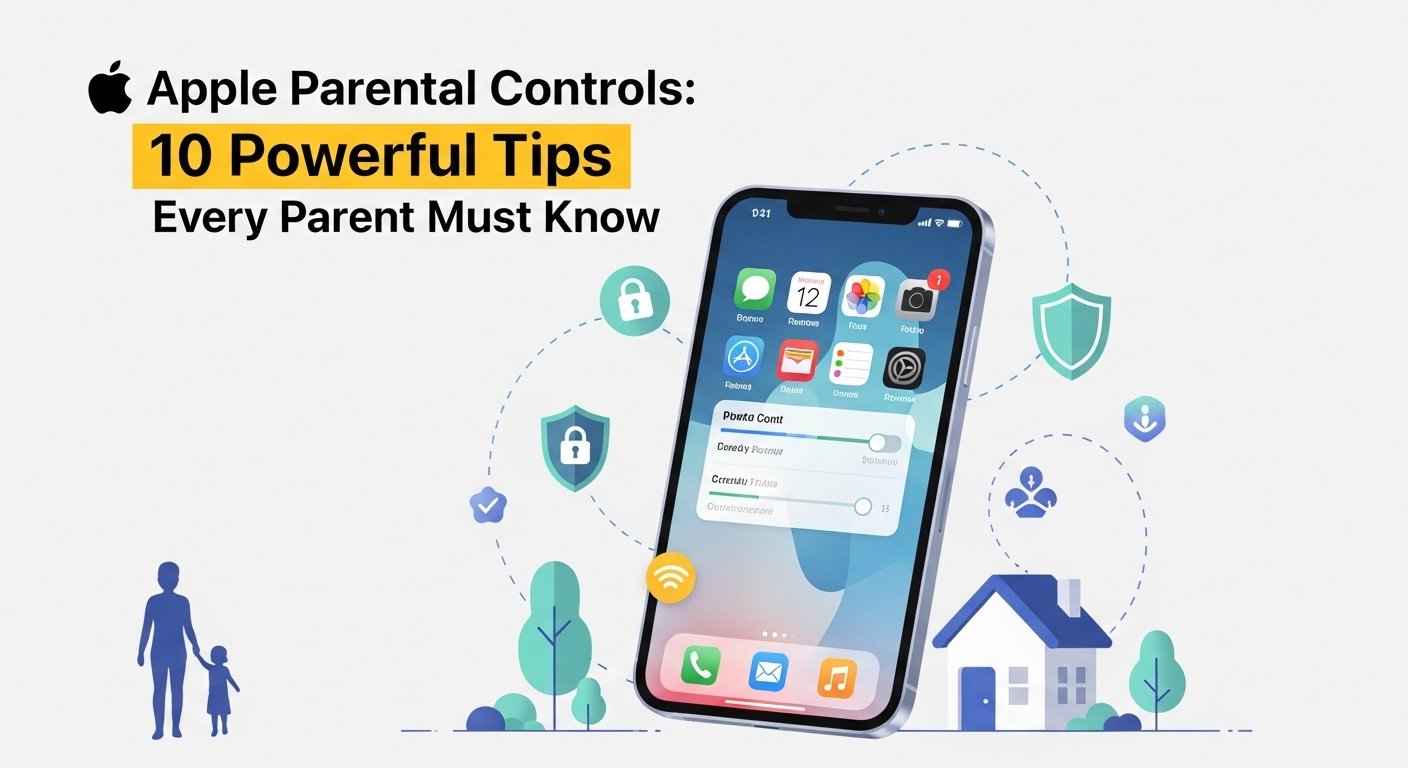
If your child uses an iPhone or iPad, this guide is for you.
I’ve spent a good amount of time helping parents figure out apple parental controls, and honestly, most people don’t realize how powerful the built-in tools already are. You don’t need fancy apps. Apple’s own Screen Time system covers a lot if you set it up properly.
Kids are getting devices earlier than ever. And without boundaries, it’s very easy for screen time to spiral. That’s where parental controls iPhone and iPad parental settings come in not to control kids completely, but to guide healthier habits.
What Are Apple Parental Controls & How They Work
Overview of Screen Time
At the center of everything is Screen Time. Think of it as a dashboard that shows how a device is being used apps, time spent, pickups, everything.
From what I’ve seen, the real value isn’t just control it’s awareness. Once you see how much time goes into games or social media, things click.
Key Features Explained
Here’s what you get with Apple’s system:
- Daily and weekly usage reports
- App limits by category or individual apps
- Downtime scheduling
- Content and privacy restrictions
- Communication limits
A simple example: you can check exactly how many hours your child spent on YouTube today and set a limit instantly.
Tip #1 – Set Up Screen Time Properly
Step-by-Step Setup Guide
This step matters more than people think. A rushed setup usually leads to loopholes.
- Go to Settings → Screen Time
- Tap “Turn On Screen Time”
- Select “This is My Child’s iPhone”
- Set downtime and app limits
- Create a Screen Time passcode (don’t skip this)
That passcode is critical. Without it, kids can change everything in seconds.
Also, if you’re using Family Sharing, set it up from your own device. It makes managing kids iPhone settings much easier remotely.
Tip #2 – Use Downtime to Limit Device Usage
Best Downtime Settings for Kids
Downtime is one of the simplest and most effective tools.
For example, I often suggest:
- Block device use after 9 PM
- Allow calls only (for emergencies)
You can customize exceptions, so essentials still work.
Many parents overlook this, but bedtime phone use is where habits get messy. Setting a consistent cutoff helps more than constant reminders.
Tip #3 – Set App Limits for Better Control
Managing Social Media & Games
This is where you control how much time goes into specific apps.
You can:
- Set 1-hour daily limits on games
- Restrict social media usage
- Apply limits to categories like “Entertainment”
The difference between categories and individual apps matters. Categories are easier, but kids sometimes find alternatives within the same category.
From experience, combining both works best.
Tip #4 – Block Inappropriate Content
Web & App Restrictions
Apple gives pretty solid tools for content filtering.
You can:
- Block adult websites automatically
- Whitelist specific websites
- Restrict explicit music and apps
For younger kids, I recommend using “Allowed Websites Only.” It’s strict, but effective.
Here’s a quick view:
| Setting Type | What It Does |
|---|---|
| Website Restrictions | Blocks or allows specific sites |
| App Content Ratings | Filters apps by age rating |
| Media Restrictions | Blocks explicit songs/movies |
It’s not perfect, but it’s a strong starting point for child safe iPhone browsing.
Tip #5 – Manage Purchases & App Downloads
Prevent Unauthorized Spending
This one saves money and headaches.
Enable:
- “Ask to Buy”
- Disable in-app purchases (if needed)
With Ask to Buy, you’ll get a notification anytime your child tries to download or purchase something. You approve or deny it instantly.
I’ve seen kids accidentally spend serious amounts on games. This feature alone prevents that.
Tip #6 – Use Family Sharing for Better Control
Benefits for Parents
Family Sharing ties everything together.
You can:
- Create a child Apple ID
- Share subscriptions
- Manage purchases and downloads
- Track device usage remotely
It also makes apple family safety much smoother. Instead of checking each device manually, you control everything from one place.
Tip #7 – Monitor Activity Reports Regularly
Understanding Usage Data
This is where many parents drop the ball.
They set controls once… and never look again.
Make it a habit to review reports weekly:
- Which apps are dominating time
- Any sudden spikes in usage
- Late-night activity
From what I’ve seen, patterns tell the real story. A sudden jump in gaming hours usually means something’s off.
Tip #8 – Restrict Communication & Contacts
Safe Calling & Messaging
You can control who your child can talk to.
Options include:
- Allow only contacts
- Restrict communication during downtime
- Limit FaceTime and messages
For younger kids, I usually suggest allowing only family members. It reduces risk without overcomplicating things.
Tip #9 – Enable Location Sharing for Safety
Using Find My Feature
Location sharing is about safety not surveillance.
With Apple’s Find My:
- You can see your child’s location in real time
- Set it up through Family Sharing
- Use it during travel or school commutes
I always tell parents be transparent about it. Kids respond better when they understand why it’s there.
Tip #10 – Set Strong Privacy & Security Settings
Protecting Personal Data
Privacy settings are often ignored, but they matter a lot.
Go through:
- App permissions (camera, microphone, location)
- Disable unnecessary access
- Limit tracking
For example, most apps don’t need constant location access. Turning that off is a small step with big impact.
Common Mistakes Parents Should Avoid
A few things I see all the time:
- Not setting a Screen Time passcode
- Being too strict (kids push back harder)
- Being too lenient (controls become useless)
- Ignoring activity reports
Balance is key. Controls should guide behavior, not create constant conflict.
Bonus Tips for Better Digital Parenting
A few things that work in real life:
- Set family tech rules (and stick to them)
- Keep some screen-free time daily
- Don’t use devices as rewards or punishments
- Lead by example kids notice everything
Honestly, what parents do matters more than what they set in settings.
FAQs
How do I turn on parental controls on iPhone?
Go to Settings → Screen Time → Turn On Screen Time → Set as child device → Add passcode.
Can I monitor my child’s iPhone remotely?
Yes, using Family Sharing. You can manage settings and view reports from your own device.
Are Apple parental controls free?
Yes. All Screen Time features are built into iOS at no cost.
What is the best age to use parental controls?
There’s no exact age, but most parents start as soon as a child gets their first device.
Can kids bypass Screen Time?
They can try especially without a passcode. Proper setup closes most loopholes.
Conclusion
Apple gives you everything you need to manage your child’s device it just needs to be used properly.
To recap:
- Set up Screen Time correctly
- Use downtime and app limits
- Block content and manage purchases
- Monitor reports regularly
- Focus on balance, not control
From what I’ve seen, the goal isn’t to eliminate screen time it’s to shape how it’s used.
Stay consistent, stay involved, and you’ll get far better results than relying on settings alone.