Admin
Admin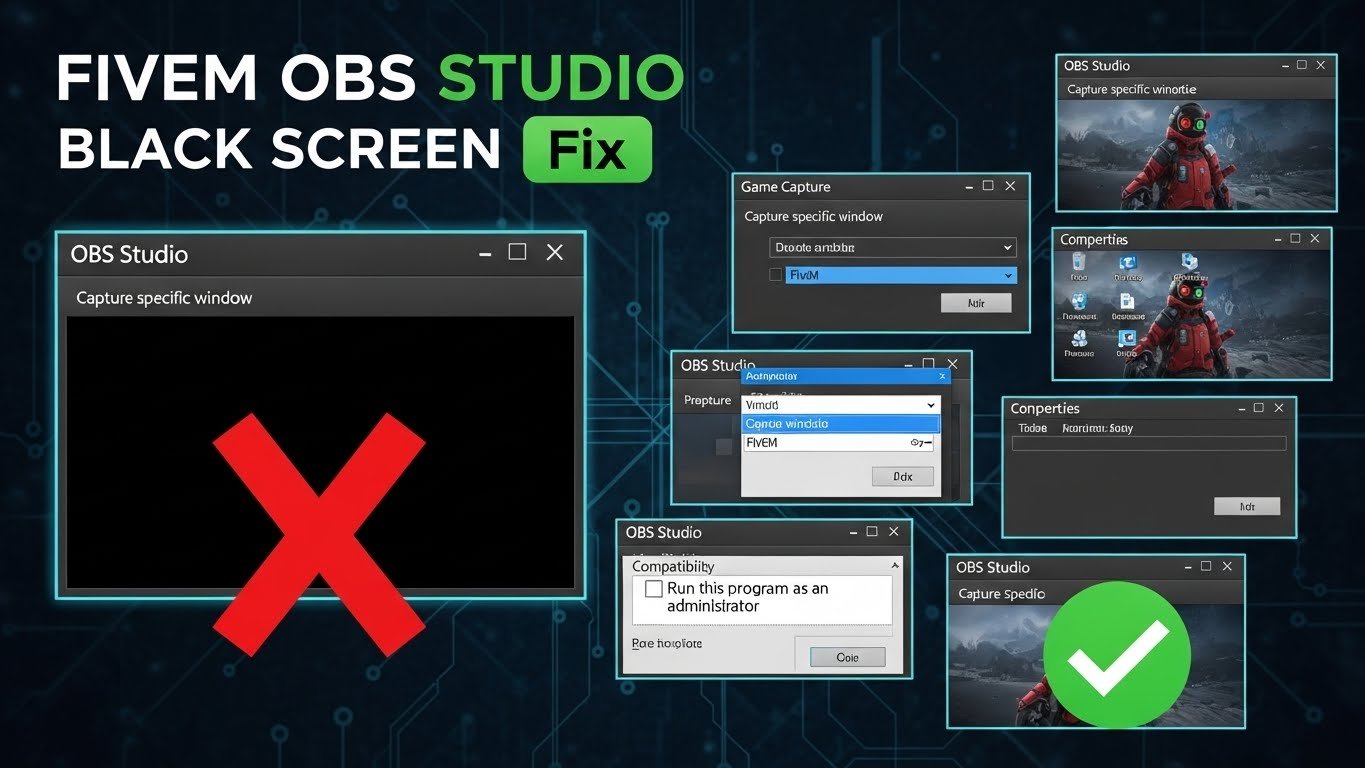
If you’ve ever tried recording or streaming FiveM using OBS Studio and ended up staring at a black screen, you’re not alone. It’s a super common issue, especially for content creators who rely on smooth, reliable capture.
This guide is for streamers, YouTubers, and anyone trying to record FiveM without tearing their hair out. By the end, you’ll have several fixes that actually work—some quick, some a bit more involved, but all tested in real scenarios.
Let’s dive in.
Why OBS Shows a Black Screen With FiveM
OBS uses a “Game Capture” hook to grab your gameplay, but it doesn’t always succeed. Sometimes it just refuses to attach to the game, leaving you with that dreaded black screen.
With FiveM, there are extra quirks. The anti-cheat system can block hooks, and fullscreen modes sometimes conflict with OBS.
Here’s a quick checklist to diagnose the problem before trying anything complicated:
- Are you running OBS and FiveM on the same GPU?
- Is Game Capture failing while Window or Display Capture works?
- Are there overlays (Discord, Steam, GeForce Experience) that might interfere?
Checking these first saves a lot of frustration later.
First Things First: Basic Checks
3.1 Run OBS as Administrator
Seriously, this fixes a majority of capture issues. OBS needs elevated permissions to hook into games properly, especially with FiveM. Right-click OBS → “Run as administrator” and see if that clears the black screen.
3.2 Update OBS and Graphics Drivers
Old software is often the culprit. OBS updates frequently patch capture bugs, and outdated GPU drivers are a classic reason for black screens. Keep everything current to avoid headaches.
3.3 Check Your Capture Source
Not all capture sources are equal:
- Game Capture: Best for performance but sometimes blocks out anti-cheat games.
- Window Capture: More reliable for FiveM if Game Capture fails.
- Display Capture: Captures the whole screen, guaranteed to work but uses more resources.
Experiment with these depending on your setup.
Tried-and-Tested Fixes for FiveM Black Screen in OBS
Switch to Window or Display Capture
If Game Capture keeps failing, try Window Capture first. It often bypasses anti-cheat restrictions. Display Capture is the last resort—works every time but can impact performance.
Set OBS and FiveM to Use Same GPU
This matters a lot for laptops with integrated and dedicated GPUs. OBS grabbing the wrong GPU can result in a black screen. Make sure both are using the high-performance GPU.
Disable Fullscreen Optimizations
Windows’ fullscreen optimizations can mess with OBS. Right-click the FiveM shortcut → Properties → Compatibility → Disable fullscreen optimizations. This trick alone has fixed the black screen for me multiple times.
Tweak OBS Capture Settings
If the problem persists, try:
- Switching from “Capture any fullscreen application” to a specific window.
- Adjusting color format and compatibility settings. Some games require “RGB” or “Compatible mode” to avoid a black screen.
Small adjustments here often make a huge difference.
Windows-Specific Settings That Help
- Disable Game Mode: Windows sometimes prioritizes the game over OBS, causing capture issues.
- Graphics Preferences: Set OBS to High Performance under Graphics Settings.
- Compatibility Mode: If your Windows version is older, running OBS in compatibility mode can help stabilize capture.
Even small tweaks like these save hours of frustration.
Additional Troubleshooting Steps
- Clear OBS’ Game Hook cache files to remove corrupt hooks.
- Close overlays and conflicting software (Discord, GeForce Experience, Steam).
- Restart OBS after shutting down any full-screen programs.
These are a bit more advanced but often necessary for stubborn black screens.
Quick Fix Checklist (Printable)
| Step | Action |
|---|---|
| 1 | Run OBS as admin |
| 2 | Update drivers |
| 3 | Try Window/Display Capture |
| 4 | Set GPU priority |
| 5 | Disable fullscreen optimizations |
| 6 | Turn off Game Mode |
When Nothing Works: Reinstall & Reset
Sometimes OBS settings get tangled beyond repair. A clean reinstall often resolves persistent issues:
- Uninstall OBS.
- Delete leftover settings in
%appdata%\obs-studio. - Reinstall the latest OBS version.
This wipes out corrupt settings and restores default behavior.
Conclusion
From my experience, the most reliable fixes are running OBS as admin, matching the GPU with FiveM, and adjusting capture sources. Windows tweaks and disabling fullscreen optimizations usually handle edge cases.
If you’re still stuck, leave a comment with your setup—often a small system-specific adjustment does the trick.
FAQs
Q: Can I stream FiveM in fullscreen without black screen?
A: Yes, but you need to disable fullscreen optimizations and make sure OBS and FiveM are on the same GPU. Otherwise, Window or Display Capture is safer.
Q: Does Borderless Windowed mode help OBS?
A: Definitely. It behaves like a fullscreen app for you but lets OBS hook in more reliably, reducing black screen issues.
Q: Why do some captures work but recording is black?
A: Overlays or GPU mismatches are usually the cause. Make sure OBS has admin privileges, is using the right GPU, and conflicts like Discord overlays are turned off.
This setup has worked consistently for me in 2026, and following these steps usually fixes black screens within minutes. Read more