Admin
Admin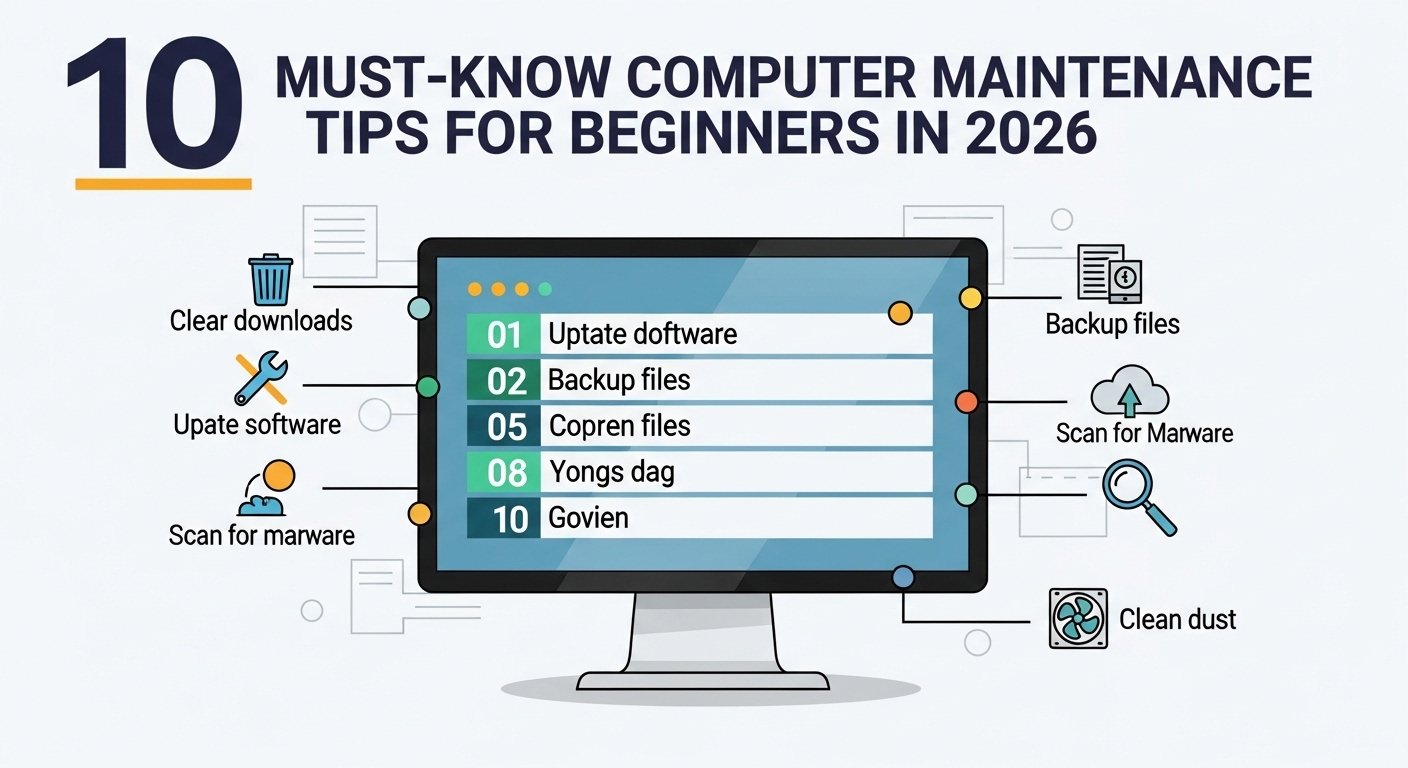
Is your computer acting slow, crashing, or throwing random errors? You’re not alone. Most people use their PCs every single day but never think about maintenance until something breaks. That’s usually the wrong time to start. Regular upkeep keeps your machine fast, your files safe, and your wallet happy. By the end of this post, you’ll know exactly what to do no tech degree needed.
Why Computer Maintenance Matters (Especially in 2026)
Cyber threats are more sophisticated than ever, operating systems demand more resources, and hardware doesn’t last forever without a little care. From what I’ve seen, a well-maintained PC can easily run 5–7 years without a costly upgrade. Skip the basics, and you’re looking at sluggish performance, random crashes, and potentially lost data.
1 Keep Your Operating System Updated
Why OS Updates Are Critical
Updates aren’t just about new features. They patch security vulnerabilities that hackers actively exploit. Skipping updates is like leaving your front door unlocked and hoping nobody notices.
How to Enable Automatic Updates (Windows & Mac)
On Windows 11: go to Settings → Windows Update → turn on automatic updates. On Mac: System Settings → General → Software Update → enable “Automatically keep my Mac up to date.” Takes two minutes. Do it now if you haven’t already.
2 Clean Up Your Hard Drive Regularly
How to Delete Junk Files on Windows and Mac
Temp files, old downloads, browser caches they pile up fast. On Windows, use the built-in Disk Cleanup tool or Storage Sense (Settings → System → Storage). On Mac, go to System Settings → General → Storage → Optimize. Clearing junk files can free up several gigabytes in minutes.
Best Free Disk Cleanup Tools for Beginners
BleachBit is a solid free option for Windows and Linux users. It’s straightforward and doesn’t push you to buy a premium version every five seconds, which I genuinely appreciate.
Read related article: https://garminlive.com/how-to-hide-followers-on-instagram-a-complete-guide-2026/
3 Run Antivirus and Malware Scans
Free vs Paid Antivirus: What Beginners Need
Honestly, Windows Defender is good enough for most people. It’s built in, stays updated automatically, and doesn’t slow your system down the way some third-party tools do. Pair it with the free version of Malwarebytes for occasional deep scans and you’re in solid shape.
How Often Should You Scan Your PC?
Run a full scan at least once a week. And please don’t click unknown email links. Even one click can cost you everything. That’s not an exaggeration.
4 Clean Your Computer Hardware (Physically)
How to Clean a Laptop or Desktop Safely
Dust buildup is the number one cause of laptop overheating, and many people never think about it. Every 3–6 months, use compressed air to blow out the vents. For keyboards, a soft brush works great. Always unplug your device first. This isn’t optional.
Tools You Need for Physical PC Cleaning
A can of compressed air, a microfiber cloth, and a soft-bristle brush cover 90% of what you need. If you want to go deeper on a desktop, a small Phillips screwdriver to open the case helps too.
5 Manage Your Startup Programs
How to Disable Startup Programs on Windows 11
Press Ctrl + Shift + Esc to open Task Manager, then click the Startup Apps tab. Sort by “Startup impact” and disable anything marked High that you don’t actively use at boot. It’s a small change that makes a noticeable difference.
Which Programs Should You Keep in Startup?
Keep your antivirus and any critical system tools. Everything else Spotify, Discord, OneDrive (if you don’t use it constantly) can be opened manually. Disabling just 3–4 unused startup apps can cut boot time in half.
6 Back Up Your Data Consistently
Best Free Backup Methods for Beginners
Google Drive gives you 15GB free. OneDrive comes with 5GB. For photos and documents, that goes a long way. Windows also has a built-in Backup and Restore tool, and Mac users have Time Machine, which is genuinely excellent.
Cloud Backup vs External Hard Drive: Which Is Better?
Both, ideally. The 3-2-1 rule: keep 3 copies of your data, on 2 different storage types, with 1 stored offsite (like the cloud). Losing years of files in one crash is devastating and a basic backup setup takes about five minutes to configure.
7 Monitor and Manage Your RAM Usage
How to Check RAM Usage on Windows and Mac
Task Manager → Performance → Memory on Windows. On Mac, open Activity Monitor and check the Memory tab. If your usage is consistently above 85%, something is eating resources it shouldn’t be.
Easy Ways to Free Up RAM Without Upgrading
Close browser tabs you’re not using. Chrome alone can eat 2–4GB of RAM with a dozen tabs open. Switching to Edge or Firefox can make a real difference on older machines. Close background apps you forgot were running they add up.
8 Keep Your Drivers Updated
Why Outdated Drivers Cause PC Problems
Outdated graphics drivers cause crashes, lag, and weird display glitches. Audio drivers affect sound quality. Network adapter drivers affect your connection speed. It all matters more than most beginners realize.
How to Update Drivers for Free (Step-by-Step)
Device Manager → right-click a device → Update driver → Search automatically. For GPU drivers specifically, go straight to Nvidia, AMD, or Intel’s official site. Manufacturer sites are more reliable than any third-party driver tool.
9 Optimize Your Browser for Better Performance
Clear Cache and Cookies Regularly
In Chrome: Settings → Privacy and Security → Clear Browsing Data → select “Cached images and files.” Do this monthly. It genuinely speeds things up and fixes a surprising number of random glitches.
Best Browser Extensions to Remove for Speed
Go through your extensions and ask yourself when you last used each one. If the answer is “I don’t remember,” remove it. Too many extensions slow down browsing more than people realize, and some of them are quietly collecting your data.
10 Maintain a Comfortable and Safe PC Environment
Ideal Temperature and Ventilation for Your PC
Keep your PC somewhere with airflow. Don’t put a laptop on a pillow or blanket it blocks the vents. A cooling pad costs about $15–20 and works well for extended use sessions.
Surge Protectors and Power Safety Tips
A $15 surge protector can save a $1,000 computer. Use one. For desktops especially, a UPS (uninterruptible power supply) also protects against sudden power cuts. Avoid placing desktop towers directly on carpet static buildup is a real risk.
Read related article: https://garminlive.com/how-to-hide-followers-on-instagram-a-complete-guide-2026/
Bonus Tips: Quick Daily Habits for a Healthy PC
- Restart your PC at least once a day it clears memory and applies pending updates
- Don’t leave laptops plugged in at 100% charge constantly
- Use strong, unique passwords for every account
- Log out of shared computers when you’re done
- Close apps you’re not actively using
FAQs
How often should I do computer maintenance?
A light checkup monthly works for most users. Physical cleaning every 3–6 months. Full maintenance review once or twice a year.
Can I maintain my computer without any technical knowledge?
Yes. Everything in this guide requires no special skills just a willingness to spend 20–30 minutes occasionally.
What is the most important computer maintenance tip?
Keeping your OS updated. Security patches alone prevent the majority of malware infections.
Is free antivirus software enough to protect my PC?
For most home users, yes. Windows Defender combined with safe browsing habits covers the basics well.
How do I know if my computer needs maintenance?
Slow startup, frequent freezing, low disk space warnings, or overheating are the clearest signs.
Does restarting my computer help with maintenance?
More than people think. Restarting clears RAM, applies updates, and fixes minor background process issues.
What tools do I need to clean my computer?
Compressed air, a microfiber cloth, and a soft brush. That’s genuinely all you need to start.
CONCLUSION:
These 10 tips cover the core of what keeps a computer running well from software hygiene to physical care to daily habits. None of it requires expert knowledge, just consistency. Start with just 2–3 of these tips today your future self will thank you. If this helped, bookmark it or share it with someone who’s been complaining about a slow PC.